Introduction
A new write-up from The Verge looks at an Android feature that lets people make their own home screen widgets with AI, in the loose, conversational style often called vibe-coding. The test case is an everyday one: a widget that shows live bus arrivals for a nearby stop. It is worth a look because it shows AI moving from chat windows into small, practical tools on the phone itself. The source text available here is brief, so this post sticks to what it states and flags what remains unknown.
What happened
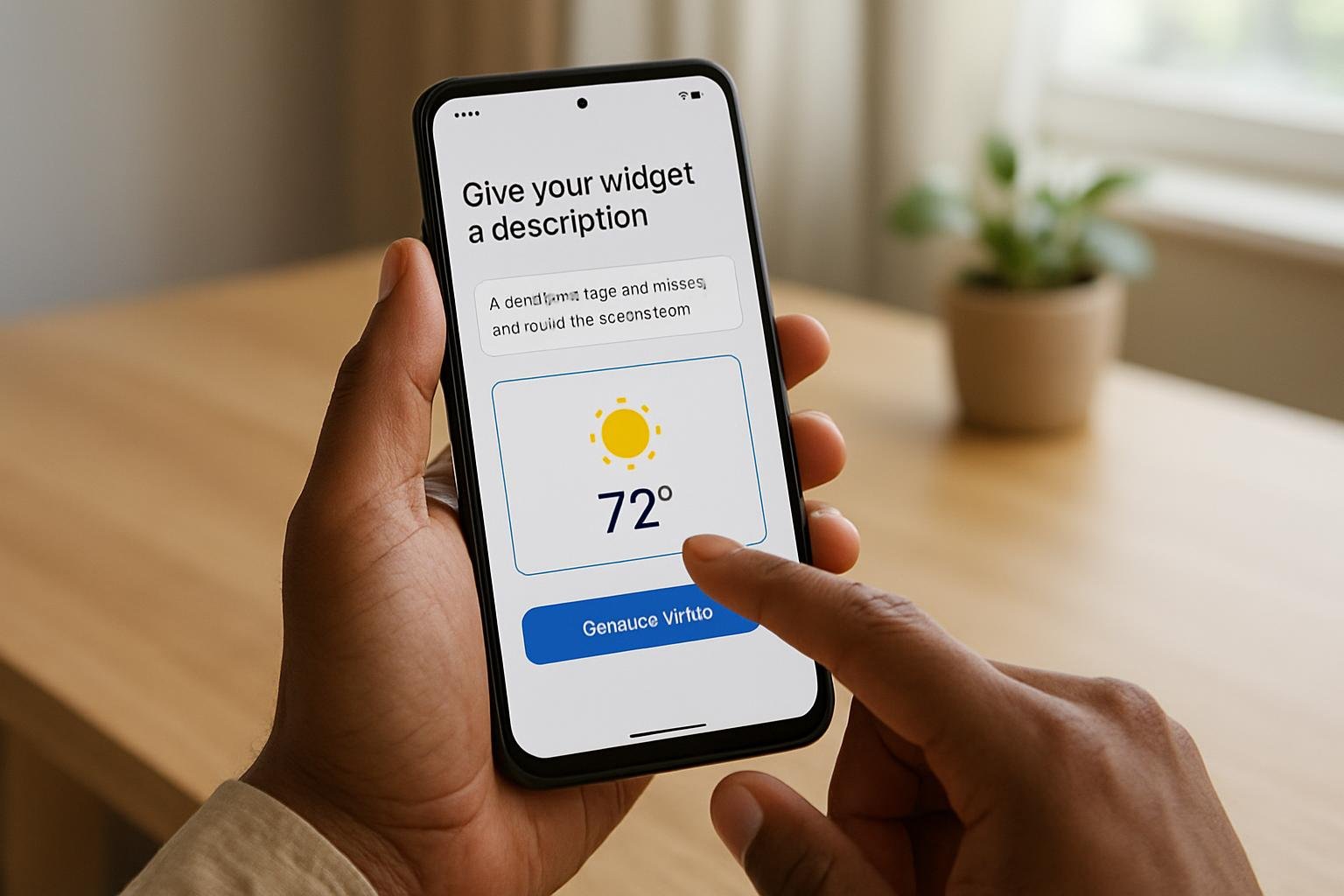
The Verge published a piece on Android’s do-it-yourself widgets, framing them as a bit of fun with vibe-coding. Vibe-coding generally means describing what you want in plain language and letting an AI system write the underlying code, rather than programming it by hand.
The article’s summary opens with the author’s own wish list. Apart from help with a calendar, the one job the author wants AI to handle is warning them when a bus is about to leave without them. The author explains that the answer is a widget, specifically one that shows real-time arrival information for the stop close to their home. The alternative is the routine of tapping through the phone to find and open the correct app, which the author clearly sees as a hassle.
The web address of the article adds some detail. It contains the phrases “android-intelligence,” “create-my-widget” and “gemini.” That suggests the feature sits under an Android Intelligence banner, is called Create My Widget, and relies on Google’s Gemini assistant. The address is a hint, not a full description, so treat those links as likely rather than confirmed.
The excerpt does not say which phones support the feature, which Android version it needs, whether it is in a beta or on general release, or how well the finished widget performed. It also gives no dates. Anything beyond the bus-stop scenario would be guesswork, so this post avoids it.
Why it matters
Widgets are one of the oldest customization tools on Android. They put live information on the home screen so a person does not need to open an app. The catch has always been that a widget must exist before you can use it. If an app does not offer the exact widget you want, you are stuck with whatever the developer shipped. A tool that builds a widget from a plain-language request changes that. The person describing the need becomes the designer.
The bus example shows why that appeals. Transit information is local and personal. One reader cares about a single stop and a single route, and a general-purpose app buries that answer under menus. A custom widget can in principle put exactly that one answer where it is seen at a glance. The author’s complaint about tapping around the screen is the kind of small friction that adds up over a week of commutes.
There is also a broader point for anyone who follows AI news. Much of the public conversation about AI focuses on chatbots and image generators. This story is about AI producing something small and durable that lives on the phone and keeps working after the conversation ends. That is a different relationship with the technology, and it raises different questions.
Some of those questions are standard ones for any software made this way, and the source does not address them. They are general cautions, not reported findings:
- Accuracy. A widget showing live arrivals is only as good as the data behind it. If an AI-made widget pulls from an unclear source, a wrong time could make you miss the bus, which defeats the purpose.
- Permissions and privacy. A widget that knows your home stop may use location or account data. Anything generated for you deserves the same scrutiny as any other app asking for access.
- Reliability. Home-grown tools may break when a data provider changes something, and there is no support desk for a widget you described yourself.
None of this means the feature is unsafe. It means the usual habits for new software still apply, even when the software is made in a few sentences.
Practical steps
For readers who want to try this kind of feature, the following steps are sensible. They are general advice, not instructions taken from the article.
- Read the full Verge article first. It is the only source here, and it will cover the details this summary leaves out, such as how the feature is started and how the result turned out.
- Update the phone. Check the system update screen in Settings and install pending Android and Google app updates. New AI features usually arrive through those channels, and updates also carry security fixes.
- Check availability on your device. The source does not list supported phones or regions. Look at your phone maker’s or Google’s official notes before assuming the feature is present.
- Be specific when describing a widget. If you try one, name the exact stop, route and information you want. A vague request is more likely to produce a vague result.
- Review permissions. If the widget asks for location, accounts or other data, check that the request makes sense for the job. Deny anything that looks unrelated.
- Verify against an official source. For a transit widget, compare its arrival times with your local transit agency’s app or signage for a few trips before depending on it.
- Keep a fallback. Until a custom widget has proved itself, keep the regular transit app on hand so a bad reading does not strand you.
- Remove what you do not use. If a generated widget is unreliable or no longer needed, delete it from the home screen and revoke any access it was given.